What This Module Does
- AI Chat Interface: Dockable chat panel (
Cmd+J) for natural language interaction - MCP Server: Exposes platform tools to AI agents via Model Context Protocol
- API Discovery: Meta-tools (
api_discover, api_execute, api_schema) for dynamic API access - OpenCode Integration: Go-based AI backend for processing requests and executing tools
- Typed Agent Framework (new — 2026-04-18):
AiAgentDefinition + defineAiTool(), generated ai-agents.generated.ts discovery, dispatcher route POST /api/ai_assistant/ai/chat?agent=<module>.<agent>, AI SDK helpers (createAiAgentTransport, runAiAgentText, runAiAgentObject), attachment bridge, and tool packs for customers + catalog — see the spec at .ai/specs/implemented/2026-04-11-unified-ai-tooling-and-subagents.md - Mutation Approval Gate (D16) (new — 2026-04-18): additive
ai_pending_actions table, prepareMutation runtime wrapper, three pending-action routes (GET / confirm / cancel), four new UI parts (mutation-preview-card, field-diff-card, confirmation-card, mutation-result-card), typed ai.action.{confirmed,cancelled,expired} events, and a cleanup worker for expired approvals — see the Upgrading / Operator rollout notes section in AGENTS.md - Playground + Settings:
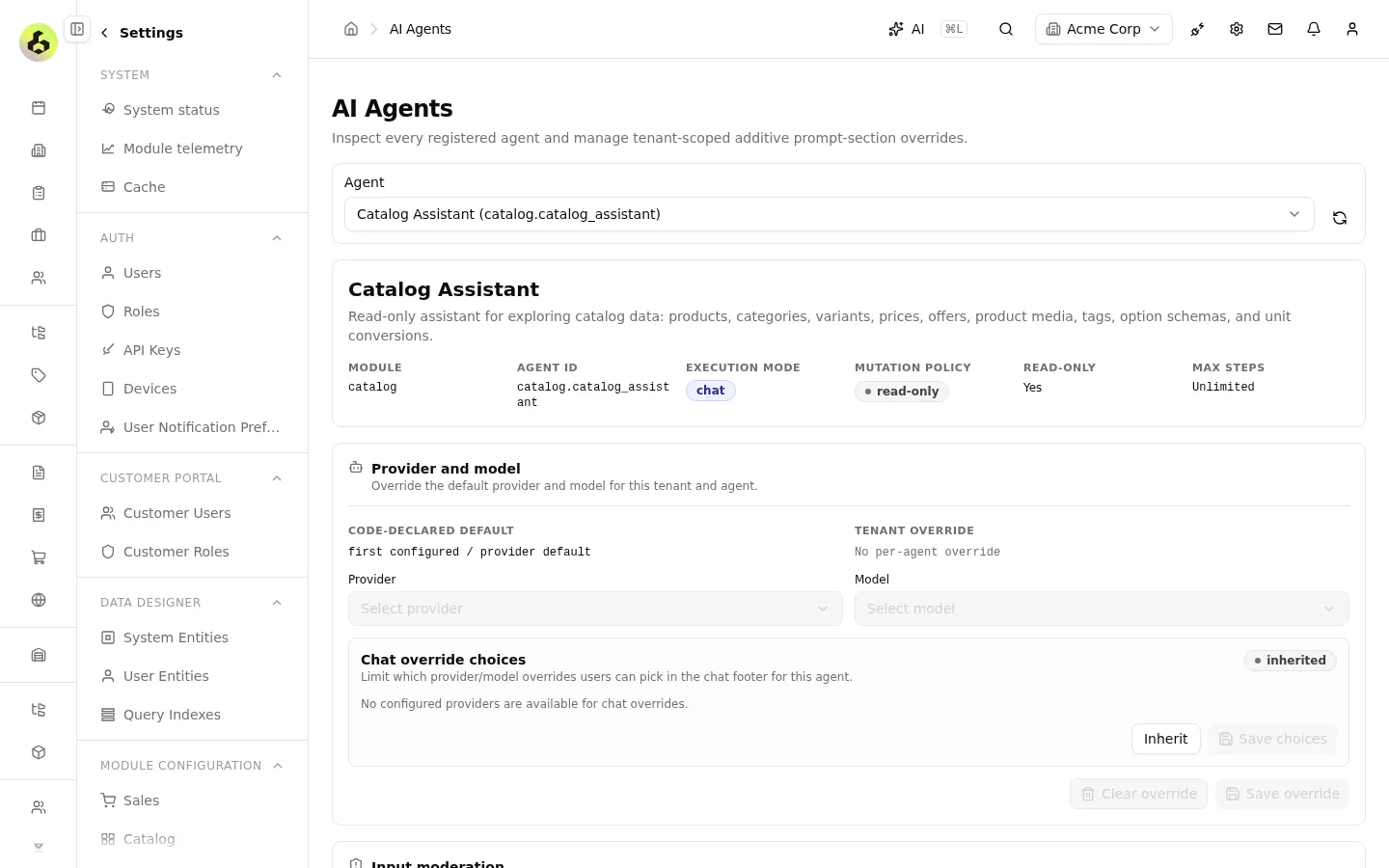
/backend/config/ai-assistant/playground (agent picker + debug + object-mode) and /backend/config/ai-assistant/agents (versioned prompt overrides + feature-gated mutationPolicy)
Both stacks coexist: OpenCode Code Mode keeps powering the Command Palette and /api/chat unchanged; the new typed framework adds focused, mutation-capable agents alongside it.
Quick Start
Prerequisites
- Node.js 24+
- Docker (for OpenCode)
- An LLM API key (Anthropic, OpenAI, or Google)
- An Open Mercato API key (created via Backend > Settings > API Keys)
Step 1: Configure LLM Provider
Add your LLM provider configuration to .env. You need both the provider selection and its API key:
# Choose ONE provider and set BOTH values

# Option A: Anthropic
OPENCODE_PROVIDER=anthropic
ANTHROPIC_API_KEY=sk-ant-api03-...

# Option B: OpenAI
# OPENCODE_PROVIDER=openai
# OPENAI_API_KEY=sk-...

# Option C: Google
# OPENCODE_PROVIDER=google
# GOOGLE_GENERATIVE_AI_API_KEY=AIza...
Step 2: Configure MCP Server
The MCP server authenticates requests using an Open Mercato API key:
- Log into Open Mercato backend
- Go to Settings > API Keys
- Create a new API key with appropriate permissions
- Copy the key (starts with
omk_) and add it to .env:
# .env
MCP_SERVER_API_KEY=omk_your_api_key_here
Step 3: Create .mcp.json for Claude Code Integration (Optional)
If you want to use Claude Code with your MCP server, create .mcp.json in the project root:
{
  "mcpServers": {
    "open-mercato": {
      "type": "http",
      "url": "http://localhost:3001/mcp",
      "headers": {
        "x-api-key": "omk_your_api_key_here"
      }
    }
  }
}
The x-api-key should be an Open Mercato API key created in the backend admin (Settings > API Keys).
Step 4: Start Services
The default hybrid dev mode needs just two commands — yarn infra:up starts OpenCode plus the infrastructure containers, and yarn dev runs the app and the MCP server on the host (provisioning the MCP API key into .mercato/mcp-shared/mcp-api-key automatically):
yarn infra:up
yarn dev
To run the pieces individually instead:
# Terminal 1: Start MCP development server
yarn mcp:dev

# Terminal 2: Start OpenCode container
docker compose --project-directory . -f starters/docker/compose.infra.yml up -d opencode

# Terminal 3: Start Next.js app
yarn dev